
Home page of the office
This is where new users come to learn about their next steps, and this is where current users return to continue their interactions with your company. Let's go through the main page from top to bottom and see what it consists of.
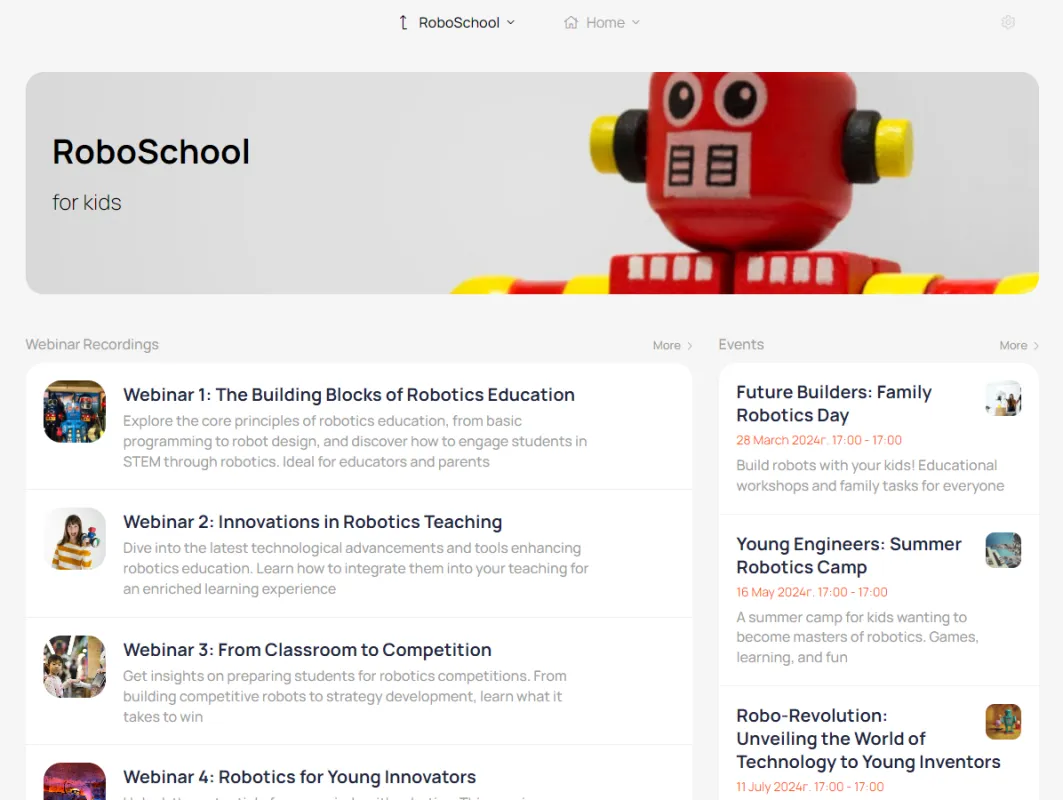
This is what the main page of your personal account looks like.
Open Day
Submit Document
About school
News
Course
Knowledge base
News
Events
Course 1
Course 2
Knowledge base
News
Events
Teacher's room
Knowledge Base for Teachers
News
Events
Editor's filter
When working with multiple segments, it allows you to view your account through the eyes of users from different segments
Link to the website
A link to your main website can be placed at the top of the homepage and on internal dashboard pages. This plays an important role in interlinking the dashboard and website, allowing them to work seamlessly together.
On the site
Main menu
The menu contains links to the main sections of the dashboard. It can be located at the top of the dashboard or in the left column.
HERO
Available only to guests—users who haven't yet registered or logged into their personal account. It's located at the top of the main dashboard page. It contains a large background image, a title, and a subtitle. It may also include a logo and two conversion buttons.
+ 1 23 456 789
Your company
USERS HERO
The block appears at the top of the main account page and is only accessible to registered users. It contains the user's name, photo, account number, badge, and buttons for the main account sections.
Content area
Content is placed here taking into account visibility for different user segments.
Hello, Username
Welcome block
Displayed upon first visit to the account. After reading, it can be hidden by the user.
Starting checklist
A list of items with a completion mark recorded in the CRM on the contact card
1 ...
Performed
2 ...
Performed
3 ...
Performed
Cabinet footer
Located at the bottom of the screen, it contains links to the main sections of the dashboard, payment system icons, and social media links.
Floating button
The round menu button is located in the lower right corner of the screen. You can add links to messengers, a feedback form, a product order form, or any other link to the button.